Android 10 App Drawer: How to Open, Use, and Customize It
You just installed a new app, and now you can’t find it. It’s not on your home screen, it’s not in any folder, and you’re starting to wonder if the download actually worked. Relax — it’s sitting in your app drawer, the one place on your phone that holds every single app you’ve installed.
If you’re running Android 10, the app drawer works a little differently than it did on older versions, mostly because Android 10 changed how you navigate your phone. This guide covers everything: what the app drawer actually is, how to open it with both gesture and button navigation, how to customize it, how to fix it when something goes wrong, and how it differs on Samsung, OnePlus, and other phones running Android 10.
What Is the App Drawer in Android 10?
The app drawer is the full-screen panel that lists every app installed on your phone, whether it came pre-installed or you downloaded it yourself. Think of your home screen as your desk — it holds the few things you reach for constantly — and the app drawer as the filing cabinet behind it, where everything else lives in neat alphabetical order.
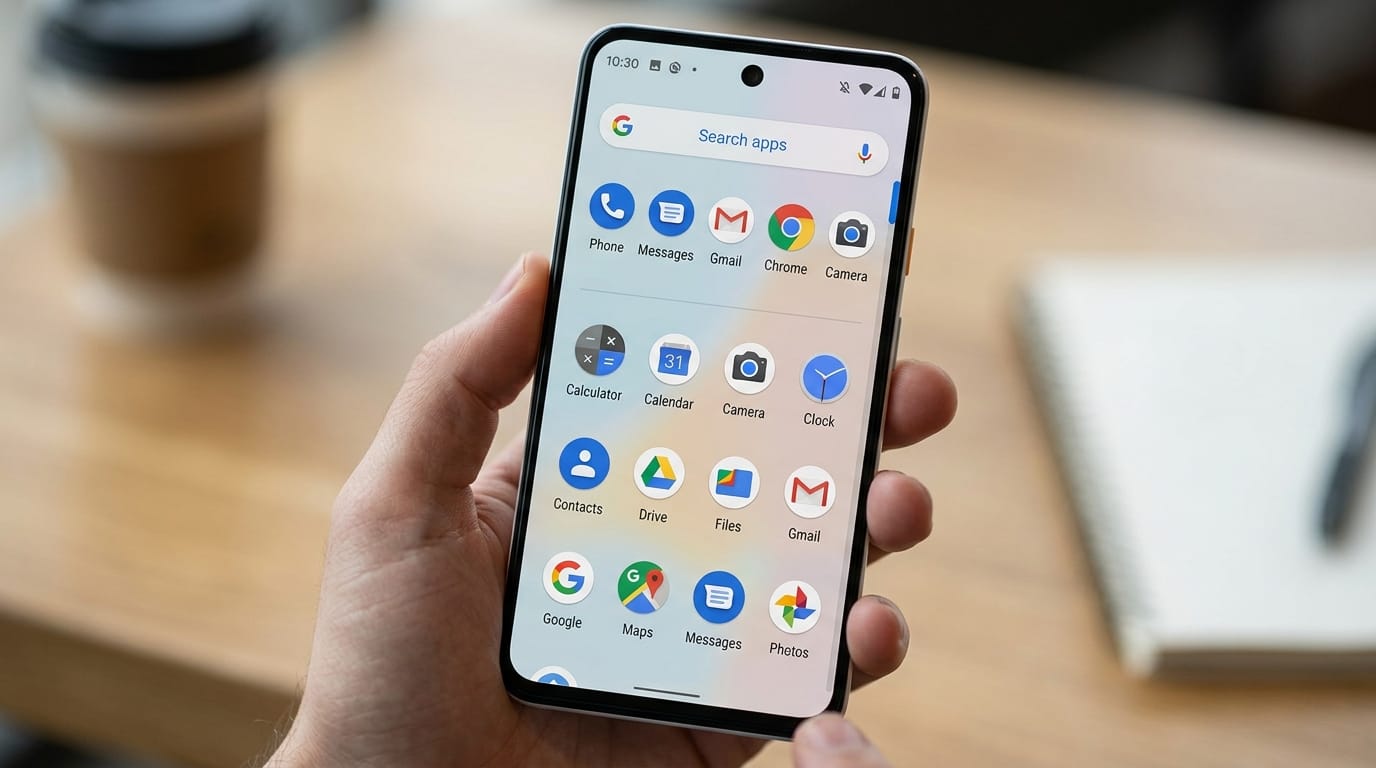
On Android 10, the drawer slides up from the bottom of the screen as a full-page grid of app icons with a search bar pinned to the top. Every launcher — that’s the app responsible for your home screen and drawer — renders it slightly differently, but the core idea never changes: one complete, searchable list of all your apps.
Here’s the distinction that trips people up: removing an app icon from your home screen does not uninstall the app. The app is still in the drawer, fully installed. Uninstalling only happens when you explicitly remove it, which we’ll cover below. Plenty of “lost app” panics end the moment someone opens the drawer and finds the icon sitting there patiently.
How to Open the App Drawer in Android 10
Android 10 was the version where Google made gesture navigation the default on new phones, replacing the old three-button bar for many users. Which method opens your drawer depends entirely on which navigation style your phone uses. Both take about one second once you know them.
Method 1: Swipe Up (Gesture Navigation)
If your phone has no back, home, or recents buttons at the bottom — just a thin bar or nothing at all — you’re using gesture navigation. From the home screen, swipe up from the very bottom edge of the screen. The app drawer glides up over your home screen.
One gesture detail worth knowing: a short swipe up takes you home from inside an app, but when you’re already on the home screen, that same swipe opens the drawer instead. A longer swipe up-and-hold opens your recent apps. If you keep landing in recents when you wanted the drawer, you’re holding your finger down a beat too long — lift off sooner.
Method 2: Tap the Drawer Icon (3-Button Navigation)
If you still see the classic triangle, circle, and square at the bottom of your screen, you’re on three-button navigation. Look at your dock — the row of icons pinned to the bottom of the home screen — and tap the app drawer icon, which usually looks like a grid of dots or small squares sitting in the center. The drawer opens immediately.
How to Check Which Navigation You’re Using
Not sure which camp you’re in? Open Settings > System > Gestures > System navigation (the exact path varies slightly by manufacturer). You’ll see your current choice listed there, and you can switch between gesture navigation, 2-button, and 3-button navigation from the same screen. Switching is instant and doesn’t delete anything.
App Drawer vs. Home Screen: What’s the Difference?
New Android users mix these two up constantly, so here’s the clean breakdown:
| Home Screen | App Drawer | |
|---|---|---|
| What it shows | Only the apps, widgets, and folders you put there | Every installed app, no exceptions |
| Can you rearrange it? | Yes — drag icons anywhere, create folders | Mostly fixed order (usually alphabetical) |
| Widgets allowed? | Yes | No |
| Deleting an icon uninstalls the app? | No — the app stays in the drawer | Yes, if you choose Uninstall here |
| How you open it | It’s your default screen | Swipe up or tap the drawer icon |
The practical takeaway: keep your home screen minimal — phone, messages, browser, camera, and whatever you open ten times a day — and let the drawer handle the other eighty apps you installed and forgot about.

Home screen vs. app drawer on Android 10
What’s Inside the Android 10 App Drawer
Open the drawer on a Pixel running Android 10 and you’ll notice it’s more than a dumb grid. Here’s what you’re looking at, top to bottom:
- The search bar. Pinned to the very top. Tap it, type two or three letters, and the grid filters in real time. This is genuinely the fastest way to launch an app once you have more than fifty installed — faster than scrolling, faster than hunting through home-screen folders.
- Suggested apps row. On Google’s Pixel Launcher, a row of four or five predicted apps sits right under the search bar, based on your usage patterns and time of day. Morning person? Your news and email apps show up. It’s surprisingly accurate, and it learns quietly in the background.
- The alphabetical grid. Everything else, A to Z. On stock Android 10 there’s no manual reordering — the launcher sorts for you, which is either a relief or an annoyance depending on your personality.
- Long-press shortcuts. Press and hold any icon and you’ll get a small popup menu: common actions (like “New incognito tab” in Chrome or “Compose” in Gmail), plus options to drag the icon to your home screen or open its App info page.
That search bar deserves emphasis. Most people scroll through three pages of icons like it’s 2014. Don’t. Type “sp” and Spotify is there before your thumb leaves the keyboard.
How to Customize the App Drawer in Android 10
Here’s where expectations need managing: the stock Android 10 launcher (the one on Pixel phones) is deliberately minimal. It gives you search and suggestions and not much else. Samsung, OnePlus, and Xiaomi add more controls, and third-party launchers open the floodgates. Here’s what’s possible, layer by layer.
Sort and Rearrange Apps
On stock Android 10, apps sort themselves alphabetically and there’s no setting to change that — Google decided consistency beats customization here. Samsung’s One UI, which shipped on Android 10 for Galaxy phones, does let you choose: open the drawer, tap the three-dot menu, and pick between alphabetical and custom order, where you can drag icons into whatever arrangement you like.
Change the Grid Size
Want five columns instead of four, so more apps fit on one screen? Stock Android 10 doesn’t offer it. Samsung buries it under Home screen settings > Apps screen grid (4×6, 5×5, and similar options). If your phone’s built-in launcher doesn’t have the option, a third-party launcher like Nova Launcher lets you set any grid density you want, free of charge.
Use Folders in the Drawer
This is the most-requested drawer feature, and the answer is “it depends.” The stock Pixel launcher on Android 10 does not support folders inside the app drawer — folders only work on the home screen. Samsung’s One UI does allow drawer folders: long-press an icon, drag it onto another, and a folder forms. Nova Launcher supports drawer folders too, though creating them requires the paid Prime upgrade.
Turn Off App Suggestions
Find the predicted-apps row creepy or just useless? Long-press your home screen, tap Home settings, and toggle off Suggestions. The drawer goes back to being a plain alphabetical list. No judgment — plenty of people prefer it.

The Android 10 app drawer in its default grid view
How to Add Apps from the Drawer to Your Home Screen
Moving an app to your home screen creates a shortcut — the app still lives in the drawer too. Two ways to do it on Android 10:
- Drag and drop: open the drawer, press and hold the app icon until the home screen appears behind it, drag it where you want, and release.
- Long-press menu: press and hold the icon, and if your launcher offers an “Add to Home screen” option in the popup, tap it. The shortcut lands on the first free spot.
To remove that shortcut later, long-press it on the home screen and drag it to the Remove option at the top (wording varies: “Remove” on Pixel, “Remove from Home” on Samsung). Again — this does not uninstall anything. The app waits for you in the drawer.
How to Remove or Uninstall Apps from the App Drawer
When you actually want an app gone, the drawer is the right place to do it:
- Open the app drawer and find the app.
- Long-press its icon.
- Drag it to the Uninstall label that appears at the top of the screen — or tap App info in the popup and hit Uninstall there.
- Confirm. The app, its icon, and its local data are removed.
Can You Hide Apps in the Android 10 App Drawer?
Short answer: not with the stock Pixel launcher. Google never built a hide-apps feature into it, which frustrates anyone who wants a banking app or a dating app out of sight when handing their phone to someone.
You do have options, though:
- Samsung phones (One UI on Android 10): open the drawer, tap the three-dot menu, go to Home screen settings > Hide apps, and select what disappears. The apps stay installed and searchable — they just don’t render in the grid. Reverse the process to bring them back.
- Third-party launchers: Nova Launcher, Apex, and similar launchers include hide-apps features in their drawer settings. This is the route for Pixel and OnePlus owners.
- Disable instead: for pre-installed bloatware you never use, disabling (Settings > Apps > select app > Disable) pulls it out of the drawer entirely without a third-party app.
A note on honesty: hiding an app from the drawer is not security. Anyone who opens Settings > Apps can see everything installed. If you need real privacy, use your phone’s secure folder feature (Samsung) or a proper app-lock tool — don’t rely on a hidden icon.
App Drawer Differences on Samsung, OnePlus, and Other Android 10 Phones
Android 10 is the same operating system everywhere, but every manufacturer skins the launcher differently. Here’s how the drawer compares on the big names from the Android 10 era:
| Phone / Launcher | Open gesture | Sort options | Hide apps | Drawer folders |
|---|---|---|---|---|
| Google Pixel (stock) | Swipe up | Alphabetical only | No | No |
| Samsung (One UI 2.x) | Swipe up or drawer icon | Alphabetical or custom | Yes | Yes |
| OnePlus (OxygenOS 10) | Swipe up | Alphabetical | Via Hidden Space (swipe right in drawer) | No |
| Xiaomi (MIUI 11) | Swipe up (if drawer enabled) | Alphabetical | Via App lock / Second space | Limited |
| Nova Launcher | Configurable | Multiple, incl. custom | Yes | Yes (Prime) |
Two quirks worth knowing. Xiaomi’s MIUI 11 shipped with no app drawer at all by default — all apps lived on home screens iPhone-style — and you had to enable the drawer in Home screen settings. And OnePlus’s “Hidden Space,” accessed by swiping right inside the drawer, is arguably the most elegant hide-apps implementation of the era: it feels like a separate private drawer rather than a settings toggle.
Common App Drawer Problems and How to Fix Them
The drawer won’t open when I swipe up
First, confirm you’re swiping from the home screen — the gesture does nothing inside other apps. Next, check your navigation mode under Settings > System > Gestures > System navigation. If you’re on 3-button navigation, there’s no swipe: tap the drawer icon in your dock instead. If gestures are on and it still fails, restart the phone; a stuck System UI is the culprit more often than anyone admits.
An installed app isn’t showing in the drawer
Run through this checklist: (1) search for it using the drawer’s search bar — it may just be buried; (2) check Settings > Apps to confirm it’s actually installed and not Disabled (disabled apps vanish from the drawer); (3) if you hid it via your launcher’s hide-apps feature, unhide it; (4) on Samsung, check the Secure Folder — apps installed there live in a separate drawer. In rare cases, clearing the launcher’s cache (Settings > Apps > your launcher > Storage > Clear cache) forces the drawer to rebuild its list.
The drawer opens when I try to open recent apps
This one mostly hits people using third-party launchers with Android 10’s gesture navigation: you swipe up and hold for recents, and the launcher’s drawer pops open instead. It’s a known friction point between custom launchers and the new gestures. Fixes that actually work: switch the launcher’s recents provider back to the system default, use the manufacturer’s own gesture system (Samsung’s, for example, plays nicer with third-party launchers), or fall back to 3-button navigation if the conflict drives you mad.
The drawer looks different after an update
Launcher updates occasionally reshuffle the drawer — search bar position, suggestion row appearing or disappearing, grid density changing. Nothing is broken; check your launcher’s settings (long-press the home screen > Home settings) and put things back how you like them. If a manufacturer update removed a feature you relied on, that’s what third-party launchers are for.

Opening the app drawer with the swipe-up gesture
7 Practical Tips to Keep Your App Drawer Usable
- Search, don’t scroll. The search bar is the single fastest way to open any app. Build the muscle memory and you’ll stop paging through icons entirely.
- Audit quarterly. Every few months, scroll the full drawer once and uninstall what you don’t recognize. If you can’t remember installing it, you don’t need it.
- Keep the home screen ruthless. Ten icons max. Everything else lives in the drawer, one swipe away — that’s literally what it’s for.
- Learn the long-press menu. App shortcuts (directions home in Maps, new note in Keep, selfie mode in Camera) save real seconds daily, and most users never discover them.
- Disable bloatware instead of ignoring it. Carrier and manufacturer apps you can’t uninstall can at least be disabled, which evicts them from the drawer for good.
- Use folders on the home screen, not the drawer. Since stock Android 10 doesn’t do drawer folders, group by category on the home screen (Finance, Travel, Shopping) and leave the drawer alphabetical.
- Try a third-party launcher before buying a new phone. If the stock drawer feels limiting — no grid control, no hiding, no folders — Nova or a similar launcher transforms the experience for free. It’s the cheapest “new phone feeling” in existence.
Frequently Asked Questions
Where is the app drawer on Android 10?
It’s not an icon you look for — it’s a screen you reveal. From the home screen, swipe up from the bottom edge (gesture navigation) or tap the grid-of-dots icon in your dock (3-button navigation). The drawer slides up showing every installed app.
How do I get the app drawer icon back if it’s missing?
The drawer icon only exists in 3-button navigation mode. If it vanished, you probably switched to gesture navigation, where the swipe replaces the icon. Check Settings > System > Gestures > System navigation to confirm or switch back.
Can I change the order of apps in the Android 10 app drawer?
On stock Android 10 (Pixel), no — apps stay alphabetical. Samsung’s One UI lets you choose custom ordering from the drawer’s three-dot menu, and third-party launchers like Nova offer full manual sorting.
Why do some apps not appear in my app drawer?
The usual suspects: the app is disabled (Settings > Apps), it’s hidden via your launcher’s hide feature, it lives in a Secure Folder / work profile with its own drawer, or the launcher’s app list needs a refresh (clear the launcher cache).
How do I hide apps on Android 10 without root?
Samsung users: drawer > three-dot menu > Home screen settings > Hide apps. Everyone else: install a third-party launcher with a hide feature, use OnePlus’s Hidden Space, or disable the app entirely if it’s bloatware.
What’s the difference between disabling and uninstalling an app?
Uninstalling removes the app and its data completely. Disabling (available mainly for pre-installed system apps) hides it from the drawer and stops it from running, but the underlying package stays on the phone and can be re-enabled anytime.
Does the app drawer drain battery?
No. The drawer is just a view rendered by your launcher when you open it — it doesn’t run in the background or consume power sitting there. If your battery is suffering, the culprit is an app in the drawer misbehaving, not the drawer itself.
Can I remove the app drawer completely?
On stock Android 10, no — it’s part of the launcher. Some manufacturers (notably Xiaomi’s MIUI) offer a “no drawer” mode where all apps sit on home screens. Third-party launchers can also mimic that layout if you prefer it.
Final Thoughts
The Android 10 app drawer isn’t glamorous, but it’s the backbone of how you actually use your phone: one complete, searchable inventory of everything installed, one swipe away. Learn the swipe (or find the icon), lean on the search bar instead of scrolling, and stop worrying about a “missing” app before you’ve checked the drawer.
And if the stock drawer ever feels too rigid — no folders, no hiding, no grid control — remember that on Android, the launcher is just an app. Swap it, and the drawer becomes whatever you want it to be. That’s always been Android’s best trick.
Read Also: BrumeBlog Com: What It Is, What It Publishes & Whether You Can Trust It (2026)